
How do I manage access for my household and close ones?
Understanding the Roles: Resident Administrator, Resident, and Permanent Guest
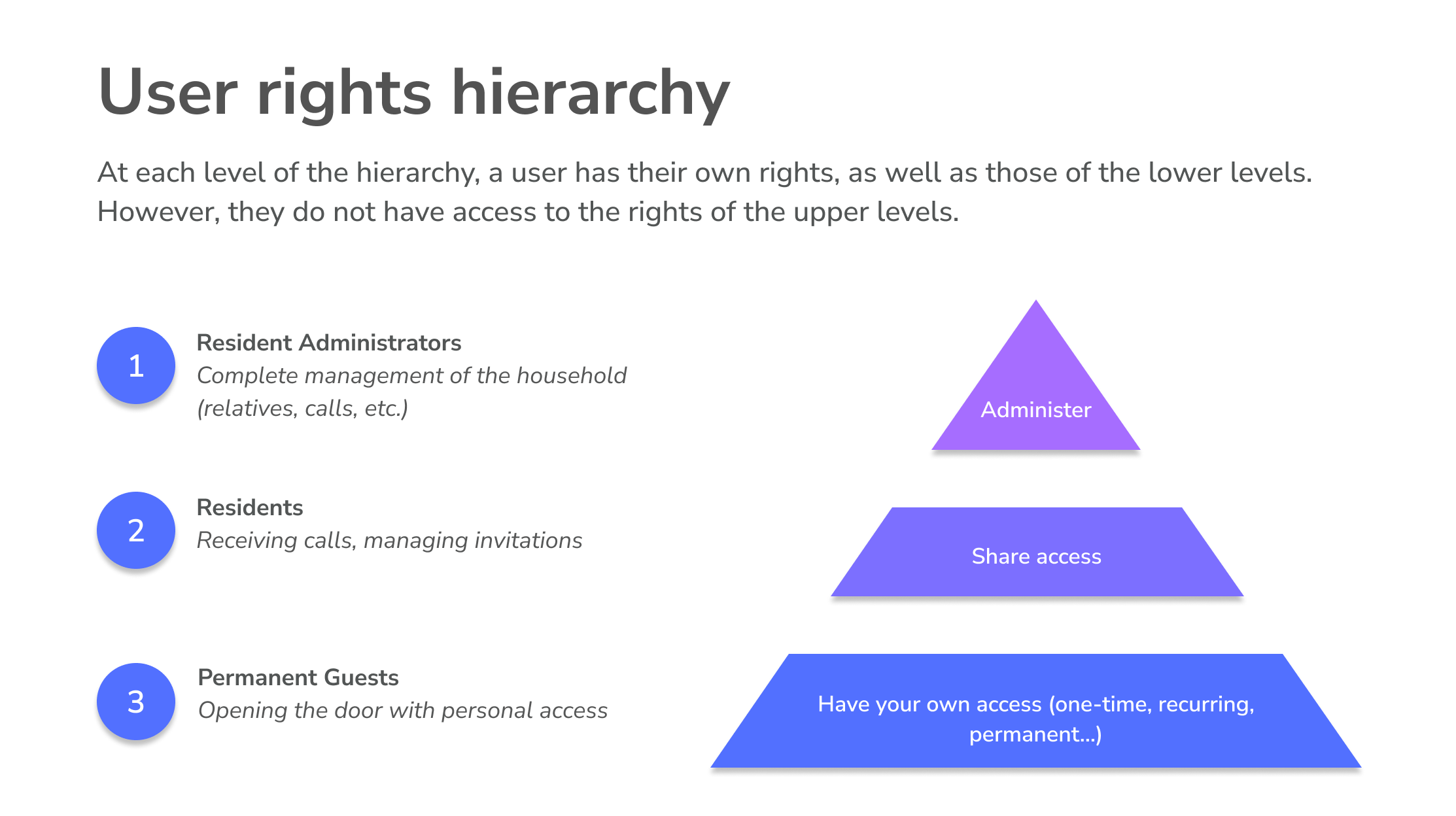
Before adding a person, it's helpful to understand the main statuses within the Oskey household:
Resident Administrator: These are people with a contractual relationship with the property (presented on the lease or title deed). Their access is created by the property manager and they have full administrative rights over their household, according to the property rules defined by the manager.
Resident: These are the household members who reside with the administrators (children, spouse who doesn't hold the lease, roommate, etc.). They are added to the household by the resident administrators. A resident has personalized and long-term permissions and access rights.
Permanent Guest: This status is designed for someone who comes to your home frequently, such as a nanny or a relative. Permanent guests have access to your building, but for a period of time you define in advance.
Adding a Member to Your Household
Adding a resident or permanent guest is done from the "My Household" section of the app.
Add a New Resident
To add a member to your household, such as a partner or roommate:
Go to the app and go to Menu > My household > Add a close one > Resident.
Choose if they will be an App user or not.
Enter their email address or phone number (or their name for a Non-app user).
Finally, click Add Resident to confirm.
For a Non-app user, a personal code will be generated. Remember to share it with the person concerned.
Add a Permanent Guest
For someone who regularly visits your home:
From the app, go to Menu > My Household > Add a Relative > Permanent Guest.
Enter their email address or phone number (or their name for a Non-app user), then set the duration for which their access will be valid.
Then select the doors to which the permanent guest will have access.
Finally, click Add permanent Guest to confirm the addition.
💡 The property manager can limit the rights of resident administrators to add residents or permanent guests to their households. In this case, the relevant buttons will not appear in the Oskey app. For details on the rules in effect in your building, contact your manager.View a user's PIN code
If your household member has forgotten their PIN code, you can find it at any time:
Go to My household.
Find the person in the list and click on their name.
Click on PIN code to display the code.
Managing Rights and Revoking Access
Managing existing access is subject to specific rules to ensure security and respect for everyone's rights.
Revocation between co-leaseholders
If you and another person are both co-leaseholders, you are considered co-administrators of the household in the app. In this case, it is not possible for one of you to unilaterally revoke the other's access. Only your property manager can intervene.
💡 In the event of a court decision (for example, a restraining order), the revocation of access for a co-leaseholder must be requested from your property manager, who is the only one authorized to apply it upon presentation of the official document.Removing a resident or permanent guest
If you are a resident administrator of the household, you can remove any residents or permanent guests in your household :
Go to Menu > My household.
Select the person you wish to remove from the list.
Tap on Delete the resident at the bottom of their profile.
Confirm your choice. The person will be immediately removed from your household and all their access will be revoked.
⚠️ Removing a household member leads to the immediate revocation of their access. Please note that any invitations this person had sent to third parties will remain active until their expiration date.